
Claude Code integrates at three levels: your editor (VS Code and JetBrains), your workflow tools (GitHub Actions, GitLab CI/CD, Slack and Chrome), and your own product through the Agent SDK. MCP servers and connectors extend it to almost any other tool or data source. Which level you need depends on whether Claude Code is a tool you use or a component you ship.
This guide walks through each level in order, from the simplest install to a production integration. It covers prerequisites, permission and settings controls, and the limits that matter once more than one user or tenant is involved.
TL;DR
- Editors: install the Claude Code extension for VS Code or the plugin for JetBrains IDEs. Both still need the standalone CLI for terminal use.
- Workflow: Claude Code connects to GitHub Actions, GitLab CI/CD, Slack and Chrome, and MCP covers custom tools and data sources.
- Your own product: the Agent SDK (TypeScript and Python) exposes Claude Code capabilities such as filesystem access, hooks and project context.
- Control: permission modes, auto mode and server-managed settings decide what the agent may do without asking.
- At scale: multi-tenant deployments need isolated filesystems and explicit settings sources, because some settings are read regardless of configuration.
The three levels of Claude Code integration
Claude Code is an agentic coding tool that reads your codebase, edits files, runs commands and works with development tools. "Integration" therefore means different things to different readers, and mixing them up is the most common source of wasted setup time.
| Level | What you integrate | Typical user | Entry point |
|---|---|---|---|
| Editor | Claude Code inside VS Code or a JetBrains IDE | Individual developer | Extension or plugin plus CLI |
| Workflow | CI pipelines, chat, browser, external tools | Engineering team | GitHub Actions, GitLab CI/CD, Slack, Chrome, MCP |
| Product | Claude Code as a runtime inside your application | Product team | Agent SDK or an agent API |
The first two levels make a developer more productive. The third turns the agent into a feature your customers use, and it brings different concerns: isolation, session storage, cost control and observability.
Prerequisites before you integrate
Every level shares the same baseline. According to the advanced setup documentation, you need:
- A supported operating system: macOS 13.0+, Windows 10 1809+, Ubuntu 20.04+, Debian 10+ or Alpine Linux 3.19+.
- At least 4 GB of RAM and an x64 or ARM64 processor.
- An Anthropic account or access through a supported cloud provider.
- The Claude CLI, installed with an available installer such as curl or Homebrew.
The quickstart adds the practical requirements: a terminal, a project to work in, and either a Claude subscription, a Console account or access through a supported cloud provider. Verify the CLI runs in a plain terminal before you attach any editor, because most editor problems trace back to a missing or unreachable CLI binary.
Integrating Claude Code with VS Code
The VS Code integration is an extension that adds a chat interface inside the editor. The documentation describes inline diffs, @-mentions, plan review and keyboard shortcuts as the core workflow features.
The steps are short:
- Install the Claude Code extension from the VS Code marketplace.
- Open the prompt box in the editor and sign in with your account.
- Reference files or selections with @-mentions so the request carries the right context.
- Review proposed changes as inline diffs before accepting them.
- If you also want Claude Code in the integrated terminal, install the standalone CLI separately. The extension does not replace it.
That last point is easy to miss. The extension provides the graphical chat experience, while terminal usage depends on the CLI being installed on its own.
Integrating Claude Code with JetBrains IDEs
The JetBrains integration works through a dedicated plugin, with features such as interactive diff viewing and selection context sharing. Setup differs slightly from VS Code:
- Install the Claude Code plugin from the JetBrains Marketplace.
- Install the CLI separately, since the plugin depends on it.
- If the IDE cannot find the executable, set its full path in the plugin settings.
- Optionally configure a custom Claude command and automatic plugin updates in the same settings page.
The path setting resolves the most common failure. IDEs launched from a desktop shortcut often inherit a different PATH than your shell, so a CLI that works in your terminal may be invisible to the IDE until you point to it explicitly.
Workflow integrations: CI, Slack and the browser
Beyond the editor, the platforms and integrations page lists where Claude Code can run and what it can connect to. The documented integrations include:
- GitHub Actions and GitLab CI/CD for CI automation, where the agent can work on code as part of a pipeline.
- Slack, to route bug reports from a channel into pull requests.
- Chrome, to debug live web applications.
These are team-level decisions. A CI integration runs without a person watching each step, which makes the permission configuration in the next sections more important than in an interactive editor session.
Connecting tools and data with MCP
When a built-in integration does not exist, the Model Context Protocol is the extension point. MCP is an open-source standard for AI-tool integrations, and it lets Claude Code connect to external tools and data sources. Typical uses are issue trackers, databases, monitoring dashboards and internal APIs.
A practical approach to MCP adoption:
- Start with one server that answers a question you ask often, such as the state of a ticket or a database schema.
- Prefer read-only access first, then add write capabilities once you trust the behavior.
- Treat each server as a new trust boundary, since the agent can call whatever it exposes.
For deterministic behavior around tool calls, such as blocking a command or logging every edit, hooks are the better mechanism. Our walkthrough of Claude Code hooks with PreToolUse and PostToolUse examples shows concrete patterns.
Claude Code API integration with the Agent SDK
Searches for an API integration usually mean one thing: running Claude Code programmatically from your own code. The Agent SDK is the official route. It has TypeScript and Python interfaces for building agents with Claude Code capabilities, including filesystem features, hooks and project context.
Two configuration points deserve attention early.
System prompt. The SDK supports a claude_code system-prompt preset or a custom prompt. The preset includes security and safety instructions, so replacing it with a fully custom prompt means you take responsibility for those behaviors.
Setting sources. The SDK lets you choose which setting sources load, as described in the page on using Claude Code features in the SDK. This determines whether project files such as instructions and settings are picked up, which changes agent behavior between your laptop and a server.
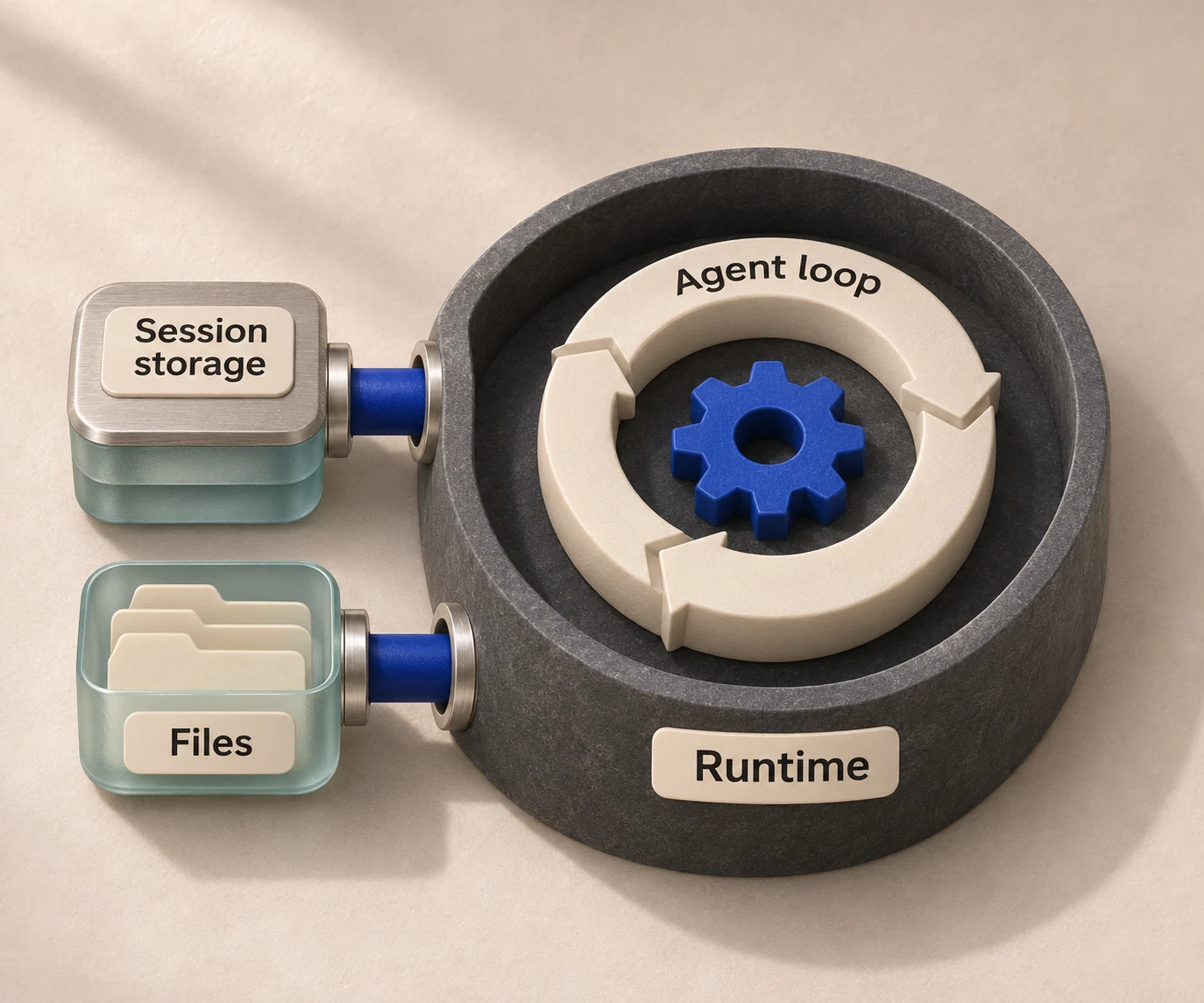
The SDK gives you the agent loop. It does not give you the surrounding infrastructure: where sessions are stored, how files are uploaded, how a sandbox is provisioned and torn down, or how you compare Claude Code against other agents. Our comparison of the Agent SDK, managed agents, agent CLIs and HarnessRouter explains where each option fits.
Controlling what the agent may do
Permission settings are the part of an integration that determines whether it is safe to leave unattended. The relevant mechanisms are:
- Permission modes control which actions Claude Code can take without asking. Starting modes can be configured for a session, a machine, a project or an organization.
- Auto mode routes tool calls through a classifier that blocks actions it judges risky. The auto mode configuration lets you identify trusted repositories, buckets and domains.
- Server-managed settings let organization Owners configure Claude Code centrally through the claude.ai console. According to the server-managed settings documentation, they are available to Teams and Enterprise customers.
A sensible rollout sequence is to begin with a restrictive mode in the editor, define trusted repositories and domains before enabling auto mode in CI, and move organization-wide defaults into server-managed settings once the policy is stable.
Limitations to plan for
Three limits come up repeatedly in production integrations.
- Some settings cannot be centrally managed. Settings restricted to OS-level policy sources, such as
policyHelperandwslInheritsWindowsSettings, are not honored in server-managed settings. If your policy depends on them, deploy them through the operating system instead. - Some settings load regardless of your configuration. In the SDK, managed policy settings and the global config are read regardless of `settingSources`. That is helpful for enforcement and surprising for isolation.
- Multi-tenant deployments need extra isolation. The same documentation recommends separate filesystems,
settingSources: []and disabling auto memory when serving multiple tenants, so that one tenant's context cannot leak into another's.
The third point is where a single-developer integration becomes an infrastructure project. Running one agent per user means provisioning environments, persisting sessions and cleaning up afterward. We cover that problem in Claude Code as a service: running it for many users.
Our perspective: integrate the harness, not just the model
We build HarnessRouter around a specific observation: the model is only part of what a coding agent is. The harness, meaning the loop, tools, permissions, session handling and file access wrapped around the model, determines much of the quality, cost and failure behavior a user experiences. Claude Code is one of the strongest harnesses available, and integrating it well is worth doing carefully.
Integrating it into a product raises questions that editor setup never does. Where does each user's session live? How are files passed in and results returned? What happens when you want to compare Claude Code against Codex, Hermes or another harness on your own tasks? Hand-wiring each harness separately multiplies backends, and each one has its own conventions for sessions, plugins and environments.
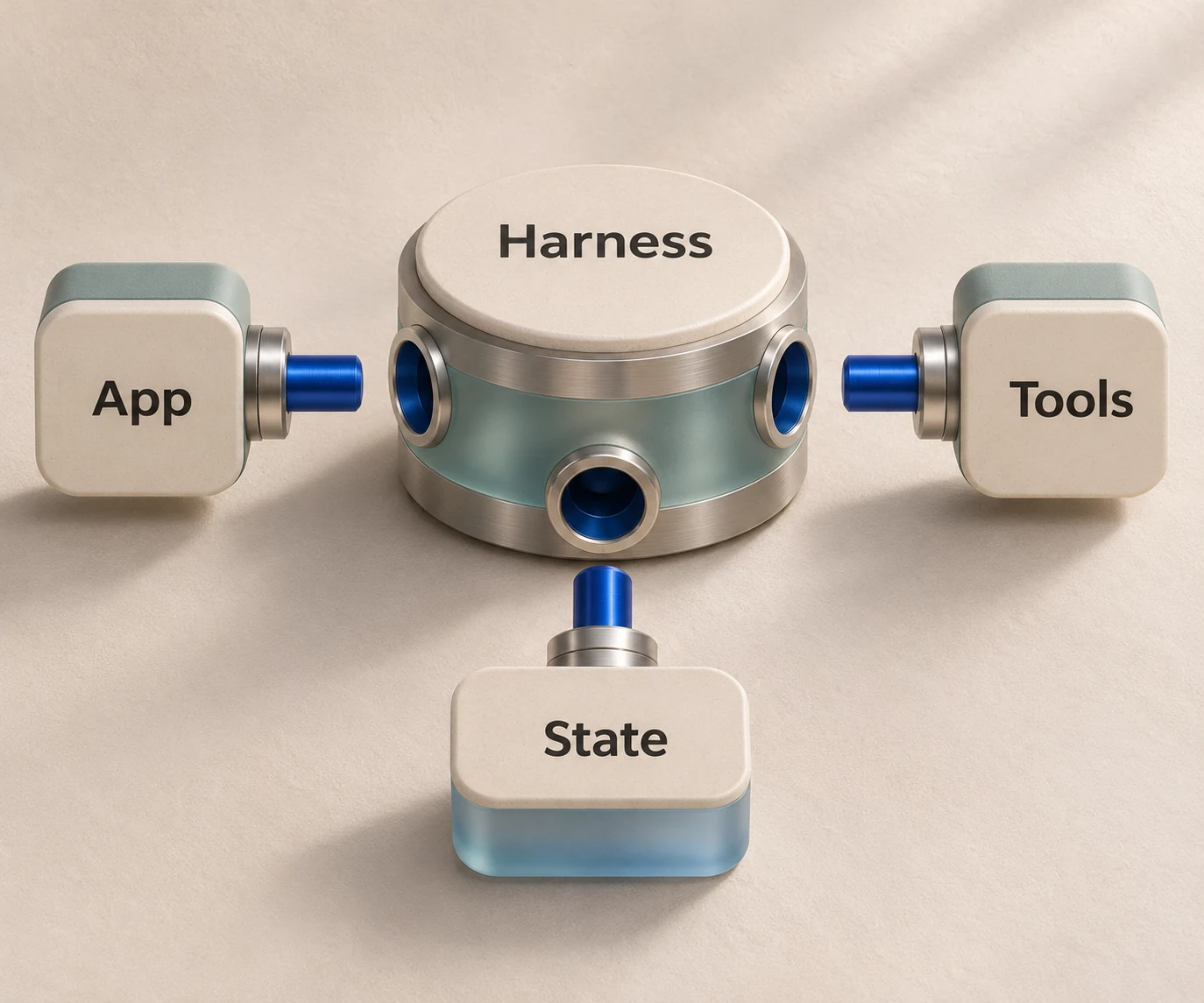
Our approach is a single Agent API in front of many harnesses, with an open-source Community Edition you can self-host and a managed cloud for teams that prefer not to operate the runtime. Because the interface is shared, benchmarking Claude Code against alternatives on your workload becomes a configuration change rather than a rewrite. Our own positioning is that this comes without markup on model provider costs, and with support for open standards such as the Unified Harness Protocol.
Our advice for teams starting out is to use the first two integration levels freely while the team learns what the agent does well, then decide deliberately whether the product level is worth building yourself or running through a shared layer. The Claude Code harness page describes how it is exposed through our API, and our ranking of AI coding agents shows how the options compare by task.
Running Claude Code inside your product with HarnessRouter
If your goal is to ship Claude Code, or any other agent harness, as part of an application, HarnessRouter provides one Agent API with session management, file handling, plugin support, environment provisioning and benchmarking tools. You can start on the Free plan at $0 per month, move to Developer at $20 per month, Production at $200 per month or Scale at $1000 per month as usage grows, and talk to us about Enterprise. Tracing is available at $50 per month, and routing with your own API keys is fee-free up to $25,000 per month of model usage at listed prices, with a 5% routing fee above that volume. Current terms are on the pricing page.

Prefer to operate it yourself? The HarnessRouter Community Edition is open source and available for self-hosting. If you are still choosing between harnesses, the [HarnessRouter homepage](/) shows which ones are supported, and our guide to running multiple coding agents covers the path from local parallelism to production.
A practical integration checklist
Before calling an integration finished, confirm each item:
- The CLI runs from a clean terminal and reports a signed-in account or provider credentials.
- The editor extension or plugin can locate the CLI, with an explicit path set where needed.
- Permission modes are set deliberately per machine, project or organization, not left at defaults.
- Trusted repositories, buckets and domains are defined before auto mode is used in automation.
- For SDK integrations, the system prompt choice and
settingSourcesvalue are documented in your repository. - For multi-tenant use, each tenant has its own filesystem and auto memory is disabled.
- Hooks or logging record tool calls you may later need to audit.
FAQ
What can Claude Code integrate with?
The documented integrations include VS Code, JetBrains IDEs, Chrome, Slack, GitHub Actions and GitLab CI/CD. MCP servers and connectors extend it to many other tools and data sources. The platforms and integrations page is the current reference.
Does Claude Code have IDE integration?
Yes. VS Code uses an extension that adds a chat interface with inline diffs, and JetBrains IDEs use a plugin from the JetBrains Marketplace. In both cases the standalone CLI needs to be installed separately for terminal use or for the plugin to function.
Can Claude Code be integrated into my own application?
Yes, through the Agent SDK, which offers TypeScript and Python interfaces. It exposes capabilities such as filesystem features, hooks and project context. For production use you also need to handle session storage, isolation and environment lifecycle, either yourself or through a layer such as HarnessRouter.
Why can't my JetBrains IDE find Claude Code?
The plugin requires the CLI to be installed separately. If the IDE cannot locate it, set the CLI's full path in the plugin settings. This is common when the IDE does not inherit your shell's PATH.
Is it safe to run Claude Code unattended in CI?
It depends on your configuration. Permission modes and auto mode control which actions need approval, and auto mode can be told which repositories, buckets and domains to trust. Start restrictive, define trusted resources explicitly and review the documentation on each mode before enabling automation.
Sources
- Platforms and integrations, Claude Code Docs
- Overview, Claude Code Docs
- Quickstart, Claude Code Docs
- Advanced setup, Claude Code Docs
- Use Claude Code in VS Code
- JetBrains IDEs, Claude Code Docs
- Connect Claude Code to tools via MCP
- Modifying system prompts, Agent SDK
- Use Claude Code features in the SDK
- Choose a permission mode
- Configure auto mode
- Configure server-managed settings